
How to update your inventory with a CSV
If you manage your product inventory directly in Candid you have the option to update your inventory using a CSV file. The steps are outlined below.
- Download the file:
- Go to your Products page in Candid
- Click "Download CSV"
- Click "Download inventory"
- Change the numbers:
- Open the file in Excel or Google Sheets
- In the "Current Inventory" column, type in your current stock count
- Save the file as a CSV
- Upload the file:
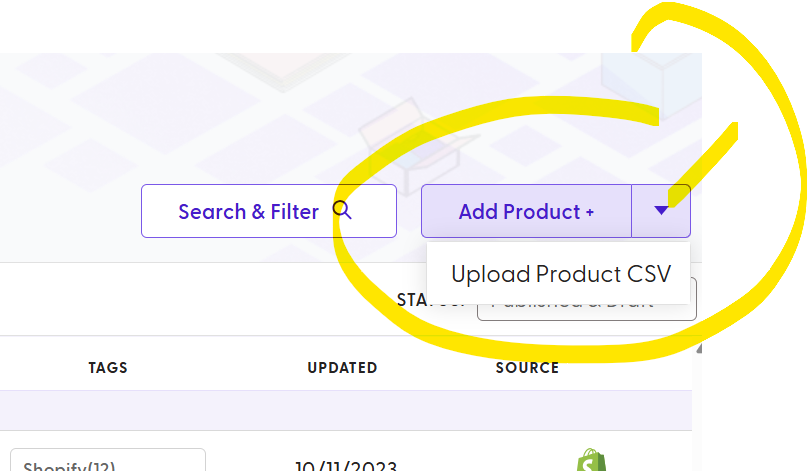
- On your Products page in Candid, click the small arrow next to "Add Product +" (see screenshot below)
- Click "Upload Product CSV"
- Click "Update Products"
- Click "Upload" and choose your file
- Click "Confirm"
Important things to remember:
- Only change the Current Inventory column. Do not change the other columns.
- Enter your total stock. Candid subtracts stock for open orders by itself.
- If a cell is empty, that product's stock will not change.
- Use Update Products, do not use Create New Products.
- This does not update by itself. Do these steps every time you want to update your stock.
- Download a new file each time.