
How to use a barcode scanner with your account
If you want to use a barcode scanner with your account, you can set up barcodes for each of the products that you want to be scannable.
To get started, head to your Products page: https://app.candidwholesale.com/selling/products-manager
Next, click on the name of the product that you would like to add a barcode to. This will open the editing page for that product.
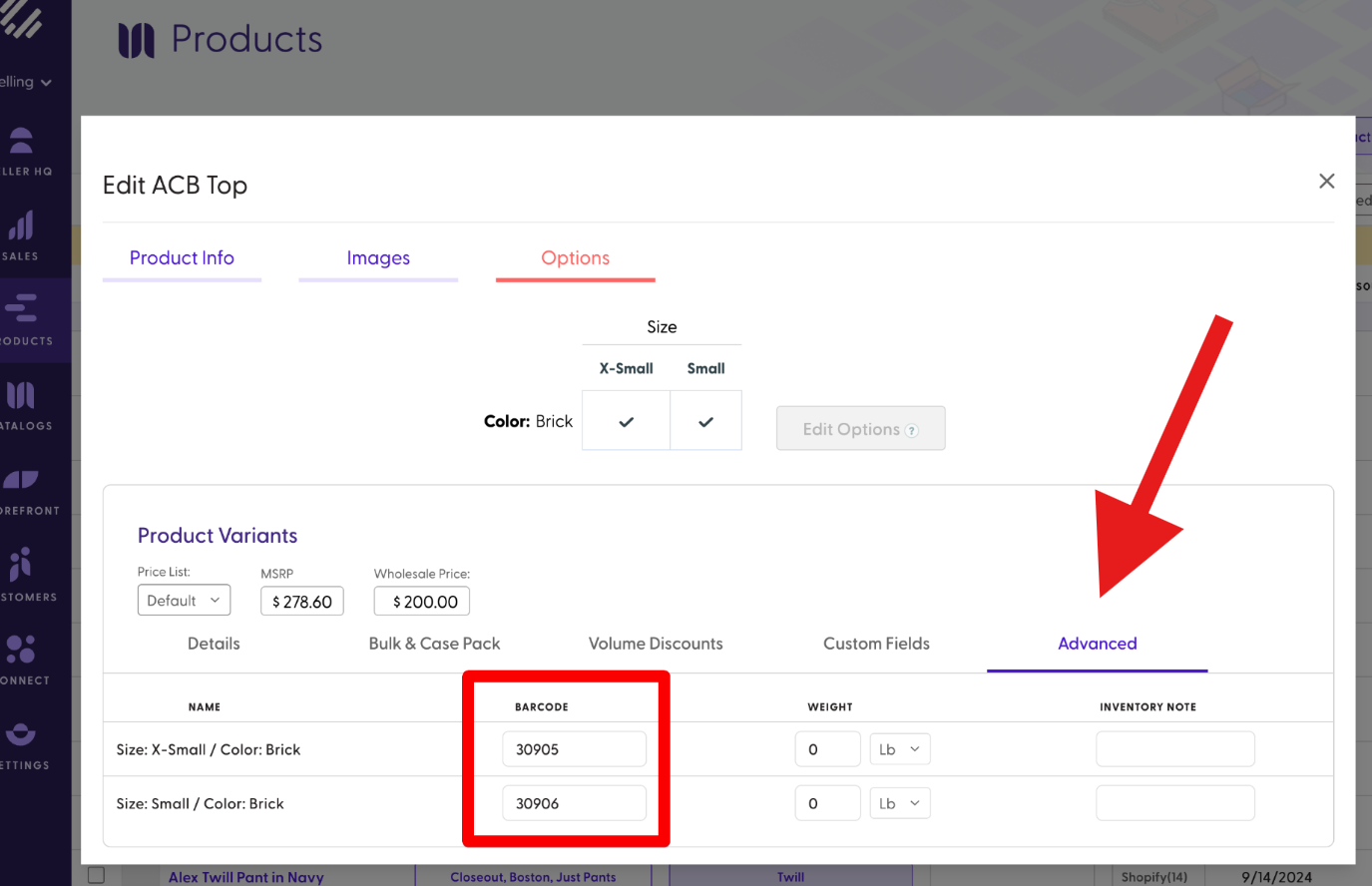
Then, from inside the product editor, click on Options and then select Advanced. Under the Barcode column type in the code for that product:
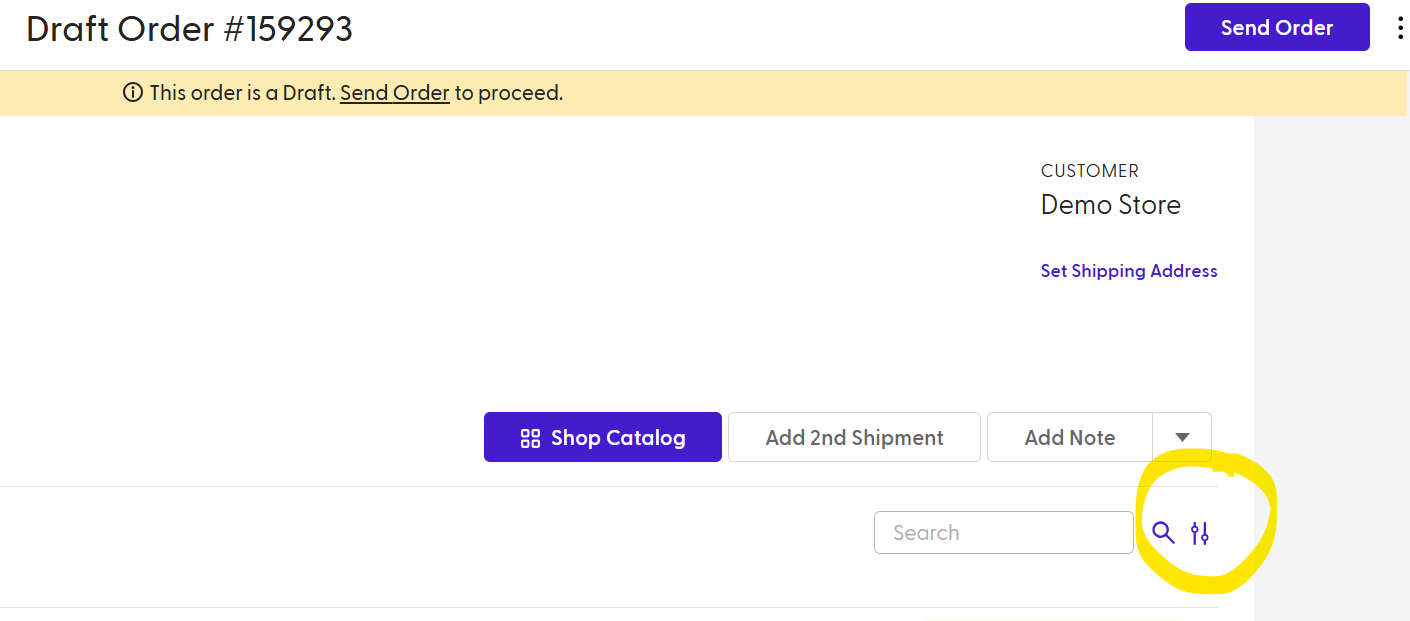
Then, when you're building an order, just ensure Quick Add is toggled on and you will be able to scan those items directly onto the order using your connected barcode scanner device. To make the Quick Add option viewable, click on the filter icon seen next to the search box in the image below:
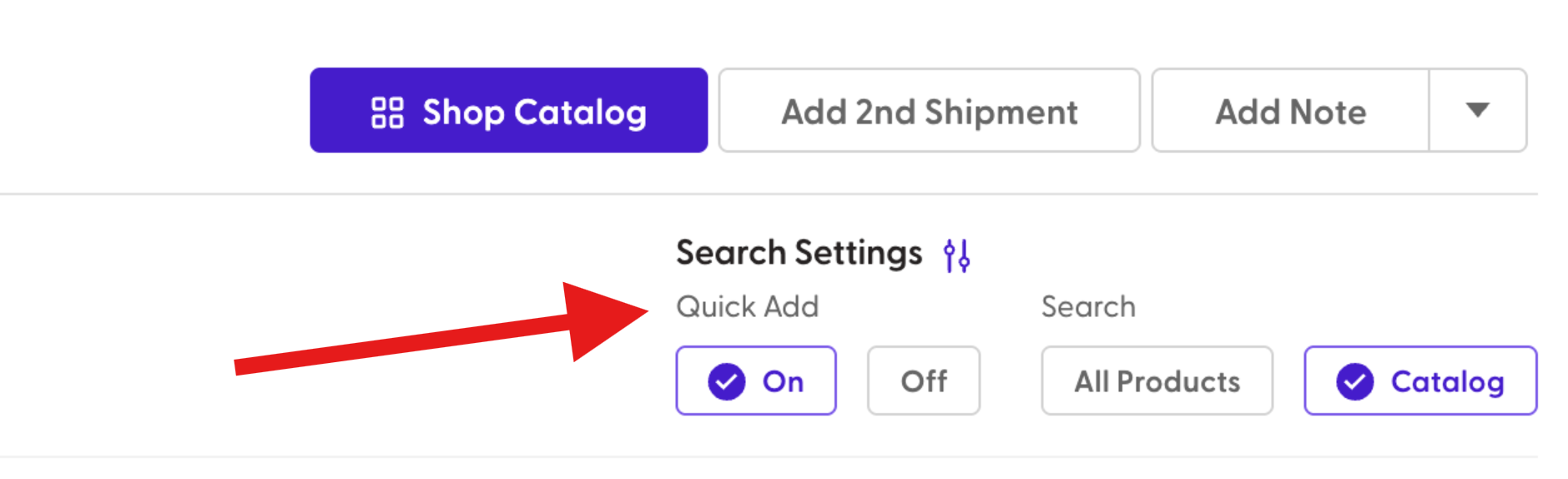
This will open the Search Settings area on the order, enabling you to toggle on the Quick Add option:
Lastly, we recommend building a test order with your barcode scanner to make sure everything is working as expected. If your going to be scanning barcodes at a trade show we also recommend creating a test order with your scanner before heading to the show.
FAQs
Does the Candid system generate the barcode numbers?
No, Candid doesn't create a barcode for you, but if your products have barcodes on their physical tags you can enter those barcode numbers into Candid and scan them directly onto orders with a connected barcode scanner.
How do barcode scanners work with Candid?
A barcode scanner works by shining light onto a barcode, capturing the reflected pattern with a sensor, and converting it into digital data that a laptop or other mobile device can process via a USB or Bluetooth connection. The scanner essentially acts like a keyboard by entering the code into the active field on the order.
Will I be able to scan multiple items, or do I need to click enter each time I want to add a new item to the order?
When you scan a barcode, it will automatically add the product to the order without you needing to press enter. Also, if you scan the same item multiple times, it will add to the existing line and update the product quantity total for that item.
Are there any specific scanner settings that I need to configure?
This mostly depends on what type of scanner you are using, but you might need to configure your scanner device to send an "Enter key" automatically after each scan. This is usually listed as something like:
"Add CR Suffix"
"Carriage Return Suffix"
"Enter Suffix"
"Terminator: CR"
Once this is configured, every scan will automatically "press Enter" at the end, letting Quick Add work as intended.